Nov 8, 2013

How to solve image background color in Blogger

Recent days every blogspot users who has connected their Google+ account to Blogger.com facing new problem, when uploading new image on Blogger.  For example when users upload a new photo on blogger with white background that white background image will be automatically changed to grey background. And also Auto enhancement feature makes adjustments to brightness, saturation, contrast and more.

To avoid these changes you have to disable Auto Enhancement feature on your Google+ account. See below for step by step guide to disable Auto Enhancement feature

How to disable Auto Enhancement feature on G+
  • Open your Google Plus account
  • click on the Home button which is placed top left corner on the window
  • Then click Settings on drop down menu
  • Now scroll the window to Auto Enhance section then remove the tick mark from Automatically enhance new photos check box. (see below image)
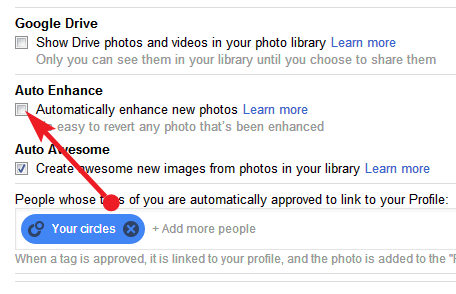
That's all you have successfully disabled Auto Enhancement feature, now you can share your original images to your readers.
Nov 6, 2013

How to add Instagram Videos on your blog and website Easiest way

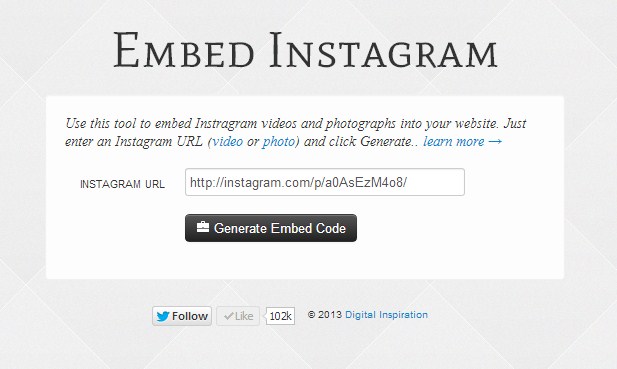
Facebook recently introduced video feature on Instagram, that allows users to capture and share 3-15 seconds videos. Are you a blogger or webmaster and want to add Instagram videos on your site? Here is the simple online tool called Embed Instagram developed by Amit Agarwal, that enables easy way to add Instagram videos on website and blogs.
  • Just go to Embed Instagram online tool
  • Simply copy and paste the Instagram video URL on given column
  • Then click Generate Embed Code button
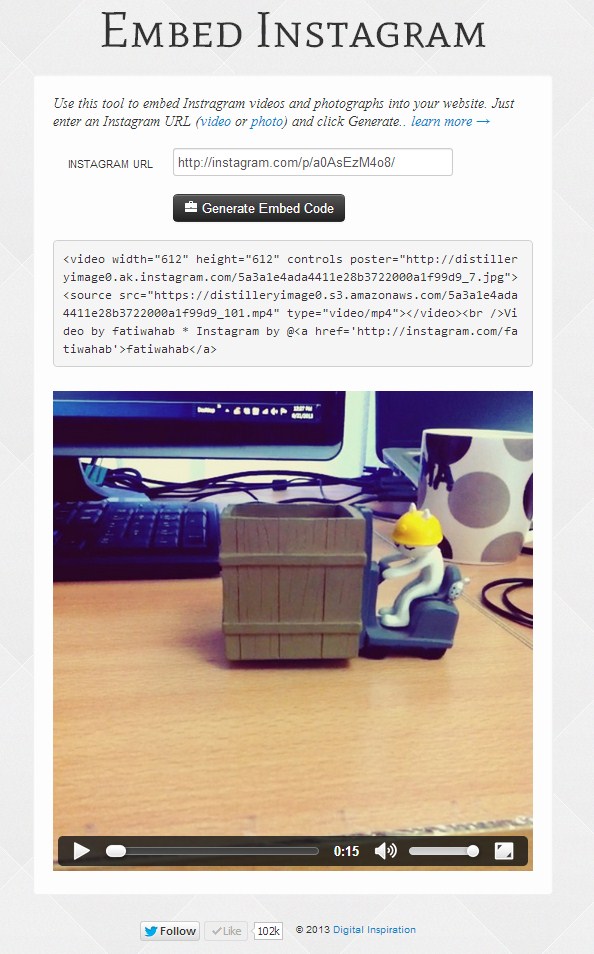
  • The tool shows Embed code of the specific video 
  • Just copy and paste the embed code to your site
That's all you have successfully added Instagram video on your site.

How to stop Google from showing your Name and Photo in Ads Google

Google recently updated terms and conditions of it's services. The new Terms will go live on November 11, 2013 for users above 18 and those who accepting new terms . According to the new terms of service your face and name will be shown in Google products including in reviews, advertising and other commercial contexts.


Google made three important update in new terms, see below to know the number of changes.

Google's New Terms of Service
  • First, clarifying how your Profile name and photo might appear Google products (including in reviews, advertising and other commercial contexts).
  • Second, a reminder to use your mobile devices safely.
  • Third, details on the importance of keeping your password confidential, click here to know more.
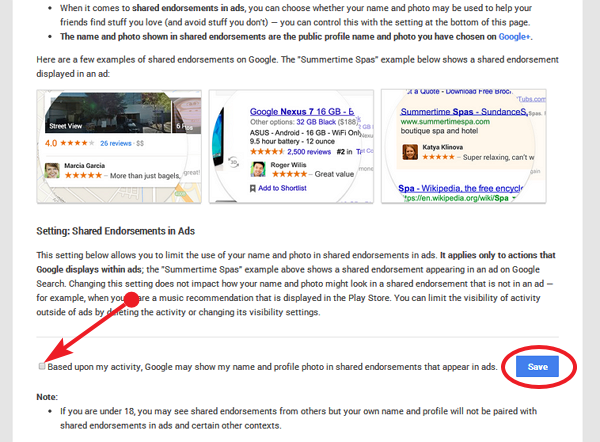
The new terms of service will be enabled to your account by default, so your profile name and photo will show in ads automatically. And also Google gives easiest solution for users who don't like to show their profile name and photo in ads. Users can stop at anytime from showing your face and name in ads.

How to:

  • Just click on this link Google endorsements
  • Then remove the tick mark from "Based upon my activity, Google may show my name and profile photo in shared endorsements that appear in ads." check box
  • Finally click the Save button 

That's all your image and name won't show in ads until you re-enable it again.

How to Enable Handwriting Input in Gmail

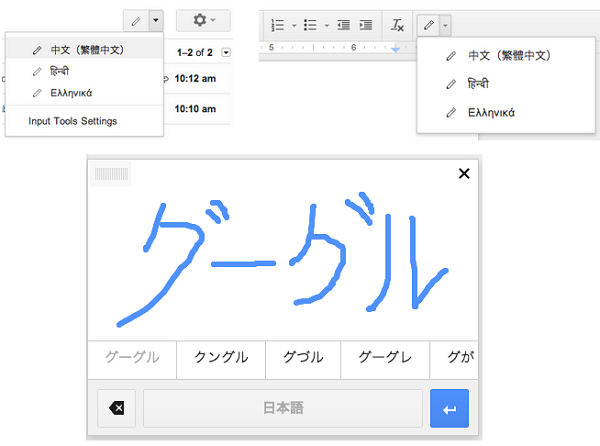
Google brings Handwriting Input to Gmail and Docs that enables users to handwriting input of the language you want to use. You can write single or multiple characters at once in the input panel to see them show up in your message or document.

 Currently, handwriting input is available in Google Docs for over 20 languages and in Gmail for over 50 languages, including Chinese, Japanese, Hindi and Russian.


How to:
  • Open your Gmail 
  • Click on the gear icon, which is placed top right corner of the window, then click "Settings"
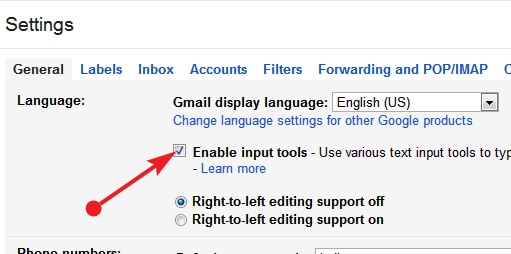
  • Click on the Enable input tools check box on Language section, If you don't see the Enable input tools click the "Show all language options"

  • Then you can see the Input Tools window, in that window double click the specific language which you want to add. (Note, Handwriting input language option will be shown with pencil icon)
  • Click the save changes button in bottom of the page, now the Gmail window will reload automatically.
  • Click the compose button in your Gmail, then select Handwriting Input by pressing Cmd + Shift + K on a Mac or Ctrl + Shift + K on a PC.
Selecting this option will open a handwriting panel in the lower-right corner of your window. Then Write the words directly with your mouse or trackpad.

Best Templates Free Online Store Blogger Templates with Cart

Most of the bloggers thinking Blogger platform only for beginners. That is totally wrong, you can run online store with Cart function using Blogger platform. Here I listed top 10 online store blogger template free for 2013.

1. Blogger Store v.2

Demo  /  Download

2. Johny Palelu Peang
Demo  /  Download

3. Johny Sip Deh

4. Johny Ganteng Cart
Demo  /  Download

5. Johny Muntuab
Demo  /  Download


6. Jojny Joss
Demo  /  Download

7. Johny MagStore

8. Johny Blackstore
Demo  /  Download

9. Shopping Cart

10. Johny Crott

Demo  /  Download